How to Migrate From Excel to Odoo: A Step-by-Step Guide
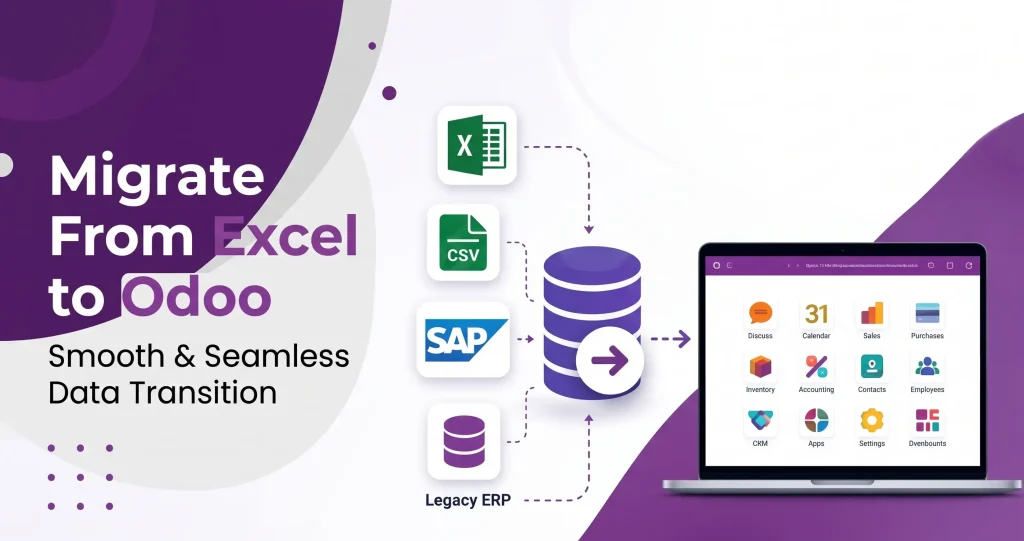
Managing business data in Excel becomes more difficult when a company grows. Multiple spreadsheets, duplicate records, manual updates and disconnected information can make it harder to manage inventory, customers, sales and daily operations.
Odoo provides a centralized system where businesses can manage these processes from a single database. However, moving from Excel to Odoo requires more than simply uploading a spreadsheet. You need to clean your data, map Excel columns to Odoo fields, test the import and verify the results.
This guide explains how to migrate from Excel to Odoo while keeping your business data organized and accurate.
Special Mux Tech Digital Offer
Why Migrate From Excel to Odoo
Excel can be useful for managing small amounts of data, but it becomes harder to maintain when several employees and departments rely on the same information.
Businesses may move to Odoo to:
- Keep business data in one centralized system
- Reduce duplicate and inconsistent records
- Automate repetitive processes
- Manage inventory and orders more efficiently
- Improve reporting and data visibility
- Allow multiple users to work with the same records
Instead of maintaining separate spreadsheets for different operations, Odoo connects your business through a single database.
Multi-Warehouse Management in Odoo
Multi-warehouse management in Odoo allows businesses to manage inventory stored in multiple physical locations through one single system.
Each warehouse can have its own:
- Stock locations
- Inventory routes
- Receiving and delivery operations
- Stock levels
- Reordering rules
For example, a business may operate warehouses in Dubai, Sharjah and Abu Dhabi. Instead of maintaining separate inventory records, Odoo allows the business to manage them through a single database.
This gives stock managers a centralized view of stock while allowing them to manage each warehouse separately.
What Data Can You Migrate From Excel to Odoo?
The data you migrate depends on the Odoo applications your business uses.
Common examples include:
- Customer and supplier information
- Product details
- Inventory records
- Sales orders
- Purchase records
- Pricelists
- Invoices and accounting information
- Historical business data
You do not necessarily need to migrate every spreadsheet or old record. Before starting, determine which details are still relevant for your current operations.
Step-by-Step Process to Migrate From Excel to Odoo
A successful migration usually involves several stages. Following them in order can reduce errors and make transition easier.
1. Audit Your Excel Data
Start by identifying all the Excel files currently being used by your business.
Review each spreadsheet and determine;
- What information it contains
- Which department uses it
- Whether the data is still required
- Whether the data is in another file
- Which records need to be moved to Odoo
This helps you avoid transferring unnecessary or outdated data.
2. Clean and Standardize Your Data
Before importing anything to Odoo, clean your Excel files.
Remove duplicate records and correct inconsistent information such as customer names, phone numbers, product codes, dates and addresses.
For example, if the same customer appears as “ABC Ltd”, “ABC Limited” or “ABC LTD”, standardize the name before importing it.
Also check for empty fields, incorrect formats and missing information that Odoo requires.
3. Set Up Your Odoo Database
Configure Odoo according to your business requirements before importing the data.
Install and configure the relevant applications such as Inventory, Sales, Purchase and Accounting. You may also need to configure warehouses, product categories, units of measure, users, taxes and other basic settings.
Setting up your database first makes it easier to map your existing Excel data to correct Odoo records.
4. Map Excel Columns to Odoo Fields
Field mapping connects your existing Excel columns with appropriate Odoo fields.
The exact fields depend on the data you are importing.
Pay particular attention to the relationship between records. For example, a sales order may depend on existing customer and product records. Importing related data in the wrong order can create errors and incorrect links.
5. Test the Import With a Small Dataset
Do not immediately import your entire Excel database.
Start with a small sample containing different types of records. Check whether the information appears correctly in Odoo and whether the relationships between records work as expected.
If something goes wrong, you can correct the Excel file or field mapping before importing thousands of records.
6. Import Your Data into Odoo
If the test import works correctly, you can begin importing the complete dataset.
Odoo provides an import function that allows users to bring structured data into different areas of the system. Depending on the data and Odoo version, you may need to prepare the spreadsheets in a supporting format before importing them.
Import related data in a logical order.
For example, customer and product records may need to exist before importing sales orders that refer to them.
7. Validate the Imported Data
After importing, compare the Odoo records with your original Excel files.
Check important information such as;
- Number of records
- Customer and supplier details
- Product quantities
- Product codes
- Prices
- Dates
- Order information
- Relationships between records
For inventory data, also verify that the quantities in Odoo match your approved stock records.
Validation helps identify missing, duplicated or incorrectly imported information before your team starts relying on the new system.
Once your stock data is accurate, you can also learn how to automate inventory management in your business.
8. Train Your Team and Go Live
Once the data has been verified, train employees on the Odoo workflows they will use in Odoo.
Show users how to create records, update information, process orders and perform their daily tasks on Odoo.
After the transition, keep the old Excel files as a reference or backup according to your business requirements, but avoid continuing to maintain parallel systems indefinitely. Otherwise, information can become inconsistent again.
Common Challenges When Migrating From Excel to Odoo
Users may face some problems when migrating from Excel to Odoo.
Common challenges include:
- Duplicate data
- Inconsistent data format
- Missing required information
- Incorrect field mapping
- Historical data issues
Best Practices for Excel to Odoo Migration
Follow these practices to make the transition smoother:
- Backup your original Excel files
- Clean your data before importing
- Test before full migration
- Import in phases
- Validate critical records
- Document the migration
- Train employees
These practices help you migrate smoothly and reduce the risk of losing data during the import process.
FAQs About Migrating From Excel to Odoo
Yes, Odoo provides an import function to bring structured data into many areas of the system. This data should be prepared and mapped to the appropriate odoo fields before importing.
You can migrate different types of business data, including customers, suppliers, products, inventory, sales, purchases and other records supported by the relevant Odoo application.
There is no fixed time for it. It depends on the amount of data, its quality, number of Odoo applications and whether historical information needs to be migrated.
Importing data into Odoo does not normally remove the original Excel files. However, you should keep a backup of your original files before starting the migration.
Not necessarily. Review your historical records and migrate the information required for current operations, reporting and other business needs.
Conclusion
Migrating from Excel to Odoo can help businesses move from disconnected spreadsheets to a centralized system for managing their operations. The key is to treat migration as a structured process rather than simply importing files.
Start by auditing and cleaning your Excel data, configure Odoo, map the fields, test a small dataset and validate the imported records. Once everything is working correctly, train your team and move daily operations to Odoo. A careful migration can give your business cleaner data, more connected workflows and better visibility without carrying unnecessary spreadsheet problems into the new system.
If you need help planning or running your migration, you can work with an Odoo partner. After your data is in place, you can also explore how to integrate Odoo with Shopify for online sales.
Recent Post
How to Migrate From Excel to Odoo: A Step-by-Step Guide
How to Migrate From Excel to Odoo: A Step-by-Step Guide Managing business data in Excel becomes more difficult when a...
Follow Us
Stay connected with Mux Tech Digital for the latest updates, tips, and insights in Today’s World. Join our community to explore innovative solutions that can transform your business!
Grow Your Business With Us
At MuxTech Digital, we provide customized solutions for digital marketing, graphic designing, and software/website/portal design and development. We help you grow your business, increase your online presence, and reach your goals.