How to Manage Multiple Warehouses in Odoo: Complete Step-by-Step Guide
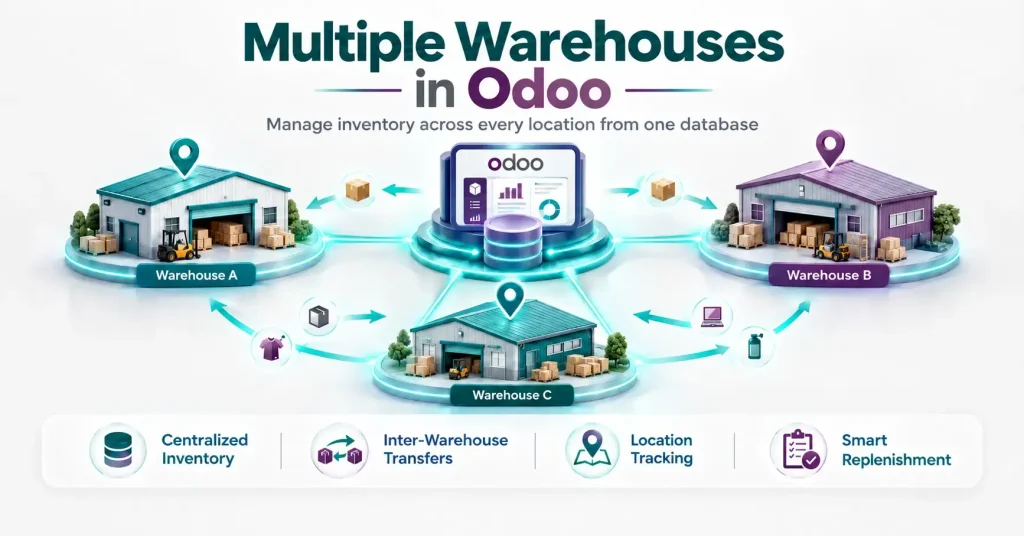
Managing inventory across several warehouses can be difficult when stock is spread across different locations. Without a centralized system, businesses may struggle to track available stock, transfer products between facilities and restock inventory at the right time. Combining multiple warehouses with automated inventory management helps reduce manual errors and keeps stock levels accurate.
Odoo inventory allows businesses to manage multiple warehouses from a single database. Each warehouse can have its own locations, inventory operations, routes and replenishment rules. With the right configuration, you can track where products are stored, move inventory between warehouses and maintain appropriate stock levels at each location.
Special Mux Tech Digital Offer
What Is Multi-Warehouse Management in Odoo?
Multi-warehouse management in Odoo allows businesses to manage inventory stored in multiple physical locations through one single system.
Each warehouse can have its own:
- Stock locations
- Inventory routes
- Receiving and delivery operations
- Stock levels
- Reordering rules
For example, a business may operate warehouses in Dubai, Sharjah and Abu Dhabi. Instead of maintaining separate inventory records, Odoo allows the business to manage them through a single database.
This gives stock managers a centralized view of stock while allowing them to manage each warehouse separately.
Warehouse vs Location in Odoo: What is the Difference?
A warehouse and a location are not the same thing.
Warehouse: A warehouse represents a physical facility.
Location: A location is a specific area where products are stored.
How to Set Up Multiple Warehouses in Odoo
Setting up multiple warehouses involves creating warehouses, organizing their locations and defining how products should move between them.
1. Enable Storage Location
You should start by enabling the inventory features required for your warehouse structure.
Go to:
Inventory → Configuration → Settings
Enable storage location if you need to track products within a specific area of a warehouse.
Depending on your operational requirements and Odoo version, you may also need features related to routes and multi-step warehouse operations.
2. Create a new Warehouse
Go to:
Inventory → Configuration → Warehouses → New
Enter the required information:
- Warehouse name
- Short name or code
- Address
- Company
- Warehouse operation settings
Save the warehouse and repeat the process for every physical facility you need to manage.
For example:
- Dubai warehouse — DXB
- Sharjah warehouse — SHJ
- Abu Dhabi warehouse — AUH
Using short and consistent codes for different warehouses can make it easier to identify warehouses during inventory management.
3. Organize Warehouse Locations
After creating a warehouse, organize the locations inside each facility.
A warehouse may have locations such as:
Warehouse → Receiving → Stocking → Picking → Packing → Shipping
You can also divide the locations further into aisles, racks, shelves or bins.
A clear location structure helps employees find products easily and gives inventory managers accurate visibility into where stock is stored.
How to Configure Routes for Multiple Warehouses in Odoo
Routes determine how products move through your inventory operations.
For a multi-warehouse setup, routes can be used for:
- Receiving products from suppliers.
- Moving products between internal locations.
- Delivering products to customers.
- Replenishing one warehouse from another.
For example, you can configure a process where an Abu Dhabi warehouse receives stock from a central warehouse when its inventory falls below the required level.
Routes become important when you want Odoo to automate your inventory management.
How to Transfer Inventory Between Warehouses in Odoo
Sometimes, businesses need to transfer products from one warehouse to another.
In Odoo, this can be done using internal transfers. The system records the source and destination locations and also the quantities of products being moved.
A typical transfer includes:
- Select the source warehouse and location.
- Select the destination warehouse and location.
- Add the products and quantities.
- Confirm the transfer.
- Process the outgoing and receiving operations.
For longer distances, a transit location is used to represent the stock that has left the source warehouse but has not yet arrived at the destination. This prevents the products in transit from being marked as available at either warehouse.
How to Replenish One Warehouse From Another
One of the most useful features of multi-warehouse management is to replenish one warehouse from another.
Suppose a business has a central warehouse in Sharjah and a regional warehouse in Dubai. If the Dubai warehouse regularly runs low on a product, it can be configured to receive a replenishment from Sharjah.
This can be managed using routes, resupply settings and reordering rules.
Set a Warehouse as a Resupply Source
You can configure one warehouse to supply the other warehouses.
For example, if the Sharjah warehouse is the central warehouse and the others are regional. You can configure Sharjah as a resupply source for regional warehouses.
When Abu Dhabi or Dubai requires additional stock, the configured replenishment process can create the required warehouse operation.
This is especially useful for businesses that use a central warehouse to supply several regional warehouses.
Use Reordering Rules
The reordering rules define when a product needs replenishment.
For example, you could set:
- Minimum quantity: 50 units
- Maximum quantity: 200 units
When available stock reaches the minimum level, Odoo can trigger the replenishment according to the configured rules.
These rules can be adjusted for individual warehouses because demand can be different at each location.
How to Track Inventory Across Multiple Warehouses
Once your warehouses are configured, Odoo can provide visibility into stock across different locations.
You can monitor:
- Stock available at each warehouse
- Product quantities by location
- Incoming and outgoing inventory
- Internal transfers
- Products in transit
- Lot and serial numbers
This helps businesses identify where stock is available before purchasing and transferring additional products.
Odoo Stock Reports: Track Stock by Warehouse and Location
Consider a business that stores the same product in three warehouses:
- Dubai has 50 units
- Sharjah has 250 units
- Abu Dhabi has 100 units
Businesses can use this information to determine whether the existing stock should be transferred before placing a new purchase order.
Tracking the inventory at location level provides even more detail by showing where the product is physically stored in the warehouse.
Benefits of Managing Multiple Warehouses with Odoo
Odoo’s multi-warehouse functionality can help businesses:
- Maintain centralized inventory control
- See stock across different facilities
- Manage internal transfers
- Improve stock availability
- Automate replenishment
- Track products by warehouse and location
- Reduce manual inventory work
The main advantage is that businesses can manage different inventories through one system without losing visibility into individual warehouses.
Best Practices for Managing Multiple Warehouses in Odoo
Proper configuration is more important than simply creating a warehouse.
These practices will help you keep inventory records accurate:
- Use clear warehouse and location names
- Set warehouse-specific reordering rules
- Track inventory in transit
- Standardize warehouse operations
- Review internal transfers between warehouses
Common Challenges in Multi-Warehouse Management
If the system is not configured correctly, multiple warehouses can cause inventory problems.
Common issues include:
- Incorrect warehouse or location configuration
- Poorly defined inventory routes
- Incorrect reordering levels
- Untracked warehouse transfers
- Inaccurate stock quantities
- Inconsistent warehouse procedures
Businesses should review their warehouse structure and replenishment rules regularly, particularly when opening new facilities or changing their distribution processes.
Frequently Asked Questions About Multiple Warehouses in Odoo
Yes, you can use internal transfers to move inventory between warehouses and also track the movement from the source to the destination.
A warehouse is a physical facility while a location is the specific area where products are stored and moved.
Yes, inventory can be monitored by warehouse and storage location, allowing you to see how stock moves between different facilities.
Yes, Odoo can be configured to replenish one warehouse from another using routes, resupply configurations and reordering rules.
Conclusion: Simplify Multi-Warehouse Management with Odoo
Managing multiple warehouses in Odoo requires more than simply creating separate warehouse records. You need to organize storage locations, configure inventory routes, establish transfer processes, and set appropriate replenishment rules. Once these elements are configured correctly, Odoo can provide centralized inventory management while keeping stock information organized by warehouse and location. This makes it easier to monitor inventory, move products between facilities and maintain appropriate stock levels as your business grows.
Need expert help setting this up? As an Odoo partner in UAE, Mux Tech Digital can implement and customize multi-warehouse inventory for your business. You can also explore our IT services for ERP, software and digital solutions.
Recent Post
How to Manage Multiple Warehouses in Odoo
How to Manage Multiple Warehouses in Odoo: Complete Step-by-Step Guide Managing inventory across several warehouses can be difficult when stock...
Follow Us
Stay connected with Mux Tech Digital for the latest updates, tips, and insights in Today’s World. Join our community to explore innovative solutions that can transform your business!
Grow Your Business With Us
At MuxTech Digital, we provide customized solutions for digital marketing, graphic designing, and software/website/portal design and development. We help you grow your business, increase your online presence, and reach your goals.